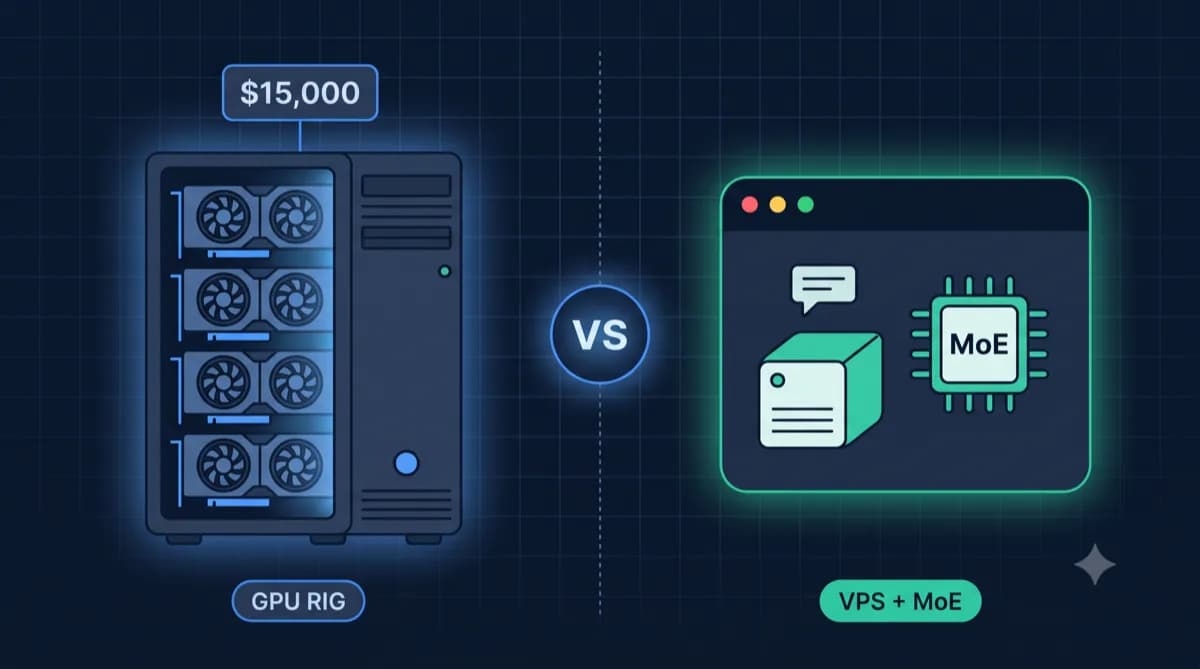
ChatGPT Plus costs $20/month. Claude Pro $18/month. But what if you could chat with AI unlimited – for $9/month fixed costs?
The math: A VPS (Virtual Private Server – your own server in the cloud) with 8 GB RAM costs from $9/month. On it runs Ollama with Llama 3.2 – a language model that can keep up with GPT-3.5 for most use cases. No API costs, no token limits, full data control.
In this guide, you'll install Ollama on your own server. Afterwards you'll have: Llama 3.2 as local AI, a ChatGPT-like interface, and sensitive data that never leaves your network.
Which VPS for your model?
Our calculator shows you the right server for Llama, Qwen & Co.
Go to Ollama VPS CalculatorPrerequisites
Before we start, you'll need:
- A VPS with at least 8 GB RAM (for Llama 3.2 8B). Don't have one? Servers from $9/month with 8+ GB RAM →
- Ubuntu 22.04 or 24.04 (Debian works too)
- SSH access to the server
- Optional: A domain for HTTPS access
Our VPS recommendations for Ollama:
| Provider | Product | RAM | Price |
|---|---|---|---|
| Netcup | RS 2000 | 8 GB | €8.99/mo |
| Hetzner | CX32 | 8 GB | €12.49/mo |
| Contabo | Cloud VPS M | 16 GB | €10.49/mo |
Contabo offers the best RAM/price ratio (16 GB for €10), Hetzner has the fastest CPUs for smoother responses, Netcup is a good middle ground.
Looking for an Ollama server?
For Llama 3.2 8B you need at least 8 GB RAM. Find suitable servers from €8.99/month.
Servers with 8+ GB RAMStep 1: Install Ollama
Installation is a one-liner. Connect via SSH and run:
curl -fsSL https://ollama.com/install.sh | sh
Verify installation:
ollama --version
# Output: ollama version 0.5.x
The script installs Ollama to /usr/local/bin/ and sets up a systemd service that starts automatically.
Step 2: Download your first model
Now let's download Llama 3.2 8B - the best starter model:
ollama pull llama3.2
Test the model:
ollama run llama3.2
>>> Write a haiku about server hosting
Tip: The first start loads the model into RAM - this takes 10-30 seconds. After that, Ollama responds instantly.
Step 3: Enable remote access
By default, Ollama only listens on localhost. For external access (e.g., n8n, Open WebUI on another server):
sudo mkdir -p /etc/systemd/system/ollama.service.d/
sudo nano /etc/systemd/system/ollama.service.d/override.conf
Contents of override.conf:
[Service]
Environment="OLLAMA_HOST=0.0.0.0"
Restart the service:
sudo systemctl daemon-reload
sudo systemctl restart ollama
Warning: Without authentication, your API is now public! In the next step, we'll secure it.
Step 4: Secure the API
Three options for secure remote access:
Option A: Firewall (simplest)
Allow only specific IPs:
sudo ufw allow from YOUR_IP to any port 11434
sudo ufw enable
Option B: Reverse Proxy with Basic Auth
Traefik or Nginx with password protection - see Step 6.
Option C: WireGuard VPN
Most secure option - Ollama stays on localhost, access only via VPN with WireGuard.
Step 5: Install Open WebUI (ChatGPT Interface)
Open WebUI gives you a slick chat interface - including chat history and user management:
Install Docker (if not already installed):
curl -fsSL https://get.docker.com | sh
sudo usermod -aG docker $USER
Start Open WebUI:
docker run -d \
  --name open-webui \
  --restart always \
  -p 3000:8080 \
  -v open-webui:/app/backend/data \
  -e OLLAMA_BASE_URL=http://host.docker.internal:11434 \
  --add-host=host.docker.internal:host-gateway \
  ghcr.io/open-webui/open-webui:main
Open WebUI is now running on port 3000. The first user to register automatically becomes admin.
Step 6: Set up HTTPS with Traefik
For secure access via a domain, we'll set up Traefik as a reverse proxy:
version: '3'

services:
  traefik:
    image: traefik:v3.0
    command:
      - --api.insecure=true
      - --providers.docker=true
      - --entrypoints.web.address=:80
      - --entrypoints.websecure.address=:443
      - --certificatesresolvers.letsencrypt.acme.httpchallenge=true
      - --certificatesresolvers.letsencrypt.acme.httpchallenge.entrypoint=web
      - [email protected]
      - --certificatesresolvers.letsencrypt.acme.storage=/letsencrypt/acme.json
    ports:
      - 80:80
      - 443:443
    volumes:
      - /var/run/docker.sock:/var/run/docker.sock
      - ./letsencrypt:/letsencrypt
    restart: always

  open-webui:
    image: ghcr.io/open-webui/open-webui:main
    volumes:
      - open-webui:/app/backend/data
    environment:
      - OLLAMA_BASE_URL=http://host.docker.internal:11434
    extra_hosts:
      - host.docker.internal:host-gateway
    labels:
      - traefik.enable=true
      - traefik.http.routers.webui.rule=Host(`chat.yourdomain.com`)
      - traefik.http.routers.webui.entrypoints=websecure
      - traefik.http.routers.webui.tls.certresolver=letsencrypt
    restart: always

volumes:
  open-webui:
Tip: Replace
chat.yourdomain.comwith your domain and make sure the DNS A record points to your server IP.
Bonus: Connect Ollama with n8n
n8n has a native Ollama node for free AI automations:
- Add an 'Ollama' node to your workflow
- Configure the Base URL:
http://localhost:11434(if n8n runs on the same server) - Select your model (e.g., llama3.2)
- Connect with Chat Trigger for a chat interface or other triggers for automations
Use cases:
- Automatically summarize and categorize emails
- Analyze and prioritize support tickets
- Generate content for social media
- Convert documents into structured data
Performance Tuning
Get the most out of your setup:
More context length
By default, Ollama uses 2048 tokens context. For longer conversations:
ollama run llama3.2 --num-ctx 4096
Warm up model
Load the model into RAM at server start for instant responses:
curl http://localhost:11434/api/generate -d '{"model": "llama3.2", "prompt": "warmup", "stream": false}'
Monitoring
Monitor RAM usage during operation:
watch -n 1 'free -h'
Model recommendations by use case
| Application | Model | RAM | Command |
|---|---|---|---|
| General chats | Llama 3.2 8B | 10 GB | ollama pull llama3.2 |
| Code writing | DeepSeek Coder 6.7B | 10 GB | ollama pull deepseek-coder:6.7b |
| German texts | Llama 3.2 8B Instruct | 10 GB | ollama pull llama3.2:8b-instruct |
| Fast responses | Mistral 7B | 10 GB | ollama pull mistral |
| Complex analysis | Qwen 2.5 14B | 18 GB | ollama pull qwen2.5:14b |
| Image analysis | LLaVA 7B | 10 GB | ollama pull llava |
Common problems
Ollama doesn't respond from remote
Check:
- OLLAMA_HOST=0.0.0.0 set?
- Port 11434 open in firewall?
systemctl restart ollamaexecuted?
Out of Memory error
Model is too large for your RAM. Use a smaller model or quantized version (e.g., llama3.2:8b-q4_0).
Slow responses
Normal on CPU! For 8B models expect 5-15 tokens/second. For more speed: Larger VPS or GPU server.
Open WebUI can't find Ollama
Check OLLAMA_BASE_URL and whether --add-host=host.docker.internal:host-gateway is set.
Conclusion
You now have a complete Ollama server with web interface and HTTPS. Your data stays on your server, you pay no API fees, and you can chat with AI unlimited.
Cost comparison: ChatGPT Plus costs $240/year. A VPS with Ollama costs ~€108/year – and you can also run Vaultwarden as password manager or Immich for photos on it.
Frequently Asked Questions
Do I need Docker for Ollama?
Can I use multiple models simultaneously?
How do I update Ollama?
Is CPU inference suitable for production?
What does a GPU server for Ollama cost?
More Self-Hosting Guides

Looking for a VPS for Ollama?
For Llama 3.2 8B you need at least 8 GB RAM. For larger models like Qwen 14B: 16 GB.
Servers with 8+ GB RAM