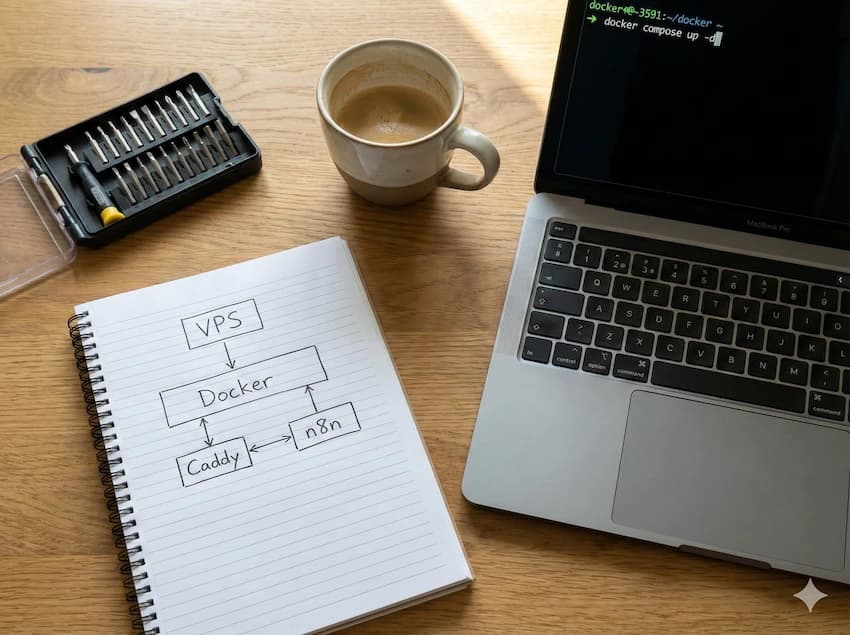
Managed hosts like Apex or Shockbyte have nice web panels. You click "Start", select a modpack, done. On a VPS? Just a black console. It doesn't have to be that way.
With Pterodactyl, you get the same panel experience on your own Hetzner or Netcup VPS – at a fraction of the cost. This guide shows you every step.
Who is this for? VPS beginners with some terminal courage. Linux knowledge helps but isn't required.
Don't have a VPS yet? Use our VPS comparison to find the right one for your player count.
What is Pterodactyl?
Pterodactyl is a free, open-source game server management panel. It runs on Docker and provides you with a web interface to manage Minecraft servers (and 50+ other games) – without ever needing to use SSH.
What you get:
- Web interface like managed hosts
- One-click installation of Paper, Forge, Fabric, Vanilla
- File manager in browser (no FTP needed)
- Automatic backups
- Multiple servers on one VPS
- User management (for friends or customers)
Pterodactyl is the reason many small hosting companies exist. You get the same software – for free.
What You Need
Before we start, check these requirements:
VPS with at least 4GB RAM
Pterodactyl itself needs about 500MB. The rest is for your game servers. For a Minecraft server with 10 players, you need at least 4GB total.
Recommendations:
- Hetzner CX22 (4GB, €4.35/month)
- Netcup RS 1000 G11 (8GB, ~€11/month)
Check out our VPS comparison with at least 4GB RAM.
KVM Virtualization (NOT OpenVZ!)
Docker doesn't run on OpenVZ or LXC. Hetzner Cloud, Netcup Root Server, and Contabo VPS all use KVM – that works.
Warning: Some budget providers use OpenVZ. Check before purchasing!
Domain or Subdomain
For the panel, you need an address like panel.yourdomain.com. A subdomain at Cloudflare is sufficient. If you don't have a domain: Cloudflare offers free subdomains via workers.dev.
Ubuntu 22.04 or Debian 12
The official Pterodactyl docs recommend these distributions. Others work but require more effort.
Which VPS Should You Choose?
| Provider | Price | Specs | Advantages | Disadvantages |
|---|---|---|---|---|
| Hetzner Cloud CX22 | €4.35/month | 2 vCPU, 4GB RAM, 40GB NVMe | Cheap, fast setup, hourly billing | Gaming DDoS protection weak |
| Netcup RS 1000 G11 | ~€11/month | 4 dedicated cores, 8GB DDR5, 256GB NVMe | Dedicated CPU (no overselling), more RAM | Longer setup (manual) |
Step 1: Install Panel
Connect to your VPS via SSH and run these commands. We use the official installer script that sets up everything automatically.
Update System
sudo apt update && sudo apt upgrade -y
Makes sure all packages are up to date.
Download and Run Installer Script
bash <(curl -s https://pterodactyl-installer.se)
The community script by Vilhelm Prytz interactively asks you for all settings. Alternatively, you can use the official script from pterodactyl-installer on GitHub.
Answer Installer Questions
The installer asks you for various settings:
| Question | Recommended Answer |
|---|---|
| What would you like to do? | 0 (Install Panel) |
| Database host | 127.0.0.1 (press Enter) |
| Database port | 3306 (press Enter) |
| Database name | panel (press Enter) |
| Database username | pterodactyl |
| Database password | Choose a secure password! |
| Timezone | Europe/Berlin |
| Email for Let's Encrypt | Your email |
| FQDN | panel.yourdomain.com |
| Admin email | Your email |
| Admin username | admin |
| Admin password | Secure password! |
Wait for Installation
The installer automatically sets up: Nginx, PHP 8.1, MariaDB, Redis, Composer, and the panel itself. This takes 5-10 minutes. At the end, you'll see: "Panel installation completed!"
Important: Note down the admin password! You can only reset it later, not retrieve it.
Step 2: Install Wings (Node)
Wings is the "worker" that runs the actual game servers in Docker containers. On a single VPS, you install Wings on the same server as the panel.
Install Docker
curl -sSL https://get.docker.com/ | CHANNEL=stable bash
Auto-start Docker
sudo systemctl enable --now docker
Download Wings
sudo mkdir -p /etc/pterodactyl
curl -L -o /usr/local/bin/wings "https://github.com/pterodactyl/wings/releases/latest/download/wings_linux_$([[ "$(uname -m)" == "x86_64" ]] && echo "amd64" || echo "arm64")"
sudo chmod u+x /usr/local/bin/wings
Create Node in Panel
Open your panel (https://panel.yourdomain.com) and log in as admin:
- Go to Admin → Locations → Create New
- Name: "Home" or "Hetzner DE" (your choice)
- Go to Admin → Nodes → Create New
- Name: "Node 1"
- FQDN: panel.yourdomain.com (or separate subdomain)
- Memory: Your RAM in MB (e.g., 3500 for 4GB VPS, leave some buffer)
- Disk: Your storage in MB
- Save
Configure Wings
In panel: Nodes → Your Node → Configuration Tab. Copy the content and save it:
sudo nano /etc/pterodactyl/config.yml
# Paste the copied content, save with Ctrl+X, Y, Enter
Set Up Wings as Service
sudo nano /etc/systemd/system/wings.service
Paste the following content:
[Unit]
Description=Pterodactyl Wings Daemon
After=docker.service
Requires=docker.service
PartOf=docker.service

[Service]
User=root
WorkingDirectory=/etc/pterodactyl
LimitNOFILE=4096
PIDFile=/var/run/wings/daemon.pid
ExecStart=/usr/local/bin/wings
Restart=on-failure
StartLimitInterval=180
StartLimitBurst=30
RestartSec=5s

[Install]
WantedBy=multi-user.target
Start Wings
sudo systemctl enable --now wings
Check status:
sudo systemctl status wings
Status should show "active (running)".
Step 3: Configure Firewall
For players to connect, the correct ports must be open.
sudo ufw allow 80      # HTTP (for Let's Encrypt)
sudo ufw allow 443     # HTTPS (Panel)
sudo ufw allow 8080    # Wings API
sudo ufw allow 2022    # Wings SFTP
sudo ufw allow 25565:25580/tcp  # Minecraft Ports (range for multiple servers)
sudo ufw enable        # Enable firewall
Important: Don't forget to keep port 22 (SSH) open, or you'll lock yourself out!
Step 4: Create Minecraft Server
Now comes the fun part: Creating your first Minecraft server.
Create Allocation
In panel: Admin → Nodes → Your Node → Allocations
IP: 0.0.0.0, Ports: 25565-25570 (or more)
Create Server
Admin → Servers → Create New
| Field | Value |
|---|---|
| Server Name | My Minecraft Server |
| Server Owner | Your admin account |
| Node | Node 1 |
| Allocation | 25565 |
| Memory | 2048 (for 2GB) |
| Disk | 10240 (for 10GB) |
| Nest | Minecraft |
| Egg | Paper (recommended) or Vanilla/Forge/Fabric |
Configure Server
After creating: Open server page → Startup Tab
| Setting | Value |
|---|---|
| Server Version | latest or e.g., 1.21.1 |
| Build Number | latest |
Start Server
Console Tab → Click Start Button
On first start, Paper/Forge downloads the required files. This takes 1-2 minutes.
Your server is now accessible at your-server-ip:25565!
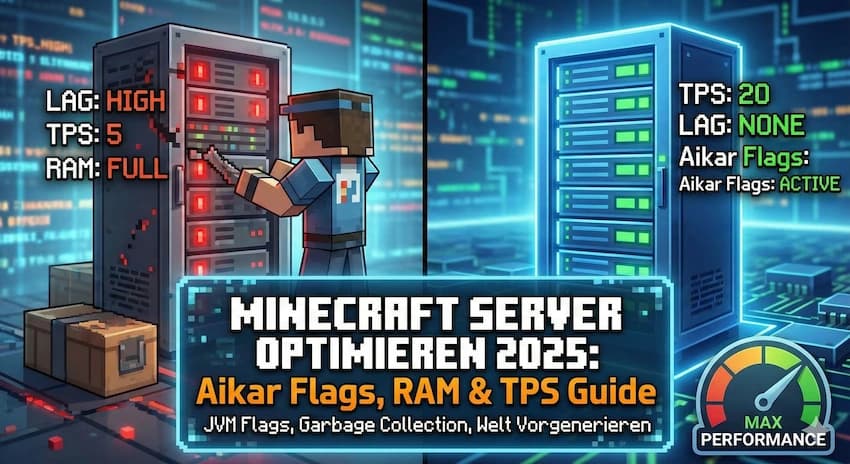
Bonus: Aikar Flags for Better Performance
Pterodactyl doesn't use optimized Java flags by default. Here's how to enable Aikar Flags:
- In panel: Admin → Servers → Your Server → Startup
- Find "Startup Command" or "Java Flags"
- Replace the flags with Aikar Flags
-Xms4G -Xmx4G -XX:+UseG1GC -XX:+ParallelRefProcEnabled -XX:MaxGCPauseMillis=200 -XX:+UnlockExperimentalVMOptions -XX:+DisableExplicitGC -XX:+AlwaysPreTouch -XX:G1NewSizePercent=30 -XX:G1MaxNewSizePercent=40 -XX:G1HeapRegionSize=8M -XX:G1ReservePercent=20 -XX:G1HeapWastePercent=5 -XX:G1MixedGCCountTarget=4 -XX:InitiatingHeapOccupancyPercent=15 -XX:G1MixedGCLiveThresholdPercent=90 -XX:G1RSetUpdatingPauseTimePercent=5 -XX:SurvivorRatio=32 -XX:+PerfDisableSharedMem -XX:MaxTenuringThreshold=1
Learn more in our Minecraft Server Optimization Guide.
Troubleshooting: Common Problems
Wings Won't Connect to Panel
- Check if port 8080 is open:
sudo ufw status - Check Wings logs:
sudo journalctl -u wings -f - Does the FQDN in Wings config match the panel?
Docker Won't Start
- Do you have OpenVZ instead of KVM? Docker needs KVM!
- Check:
sudo systemctl status docker - Reinstall:
sudo apt remove docker docker-engine docker.io containerd runc && curl -sSL https://get.docker.com/ | bash
Server Starts, But I Can't Connect
- Firewall:
sudo ufw allow 25565/tcp - Check server logs in panel for errors
- Is the IP correct? For Hetzner Cloud: Use Public IPv4
EULA Not Accepted
- In panel: Files Tab → Open eula.txt
- Change
eula=falsetoeula=true - Restart server
Out of Memory
- Did you allocate enough RAM?
- Pterodactyl + Wings need ~500MB for themselves
- With 4GB VPS: Max 3GB for Minecraft
Multiple Minecraft Servers on One VPS
A big advantage of Pterodactyl: You can run multiple servers in parallel.
Example with Netcup RS 1000 G11 (8GB RAM):
| Server | RAM | Port |
|---|---|---|
| Survival | 3GB | 25565 |
| Creative | 2GB | 25566 |
| Proxy (Velocity) | 512MB | 25567 |
This leaves ~2GB for system + Pterodactyl.
Tip: With Velocity or BungeeCord, you can connect the servers into a network. Players then switch between worlds with /server creative.
Frequently Asked Questions
Does Pterodactyl work on Hetzner Cloud?
How much RAM does Pterodactyl itself need?
Can I host multiple Minecraft servers?
Does Pterodactyl cost anything?
Is Pterodactyl secure?
Can I host other games too?
More Minecraft Guides

Ready for your own panel?
Find the right VPS for Pterodactyl – with our comparison.
Compare VPS with 4GB+